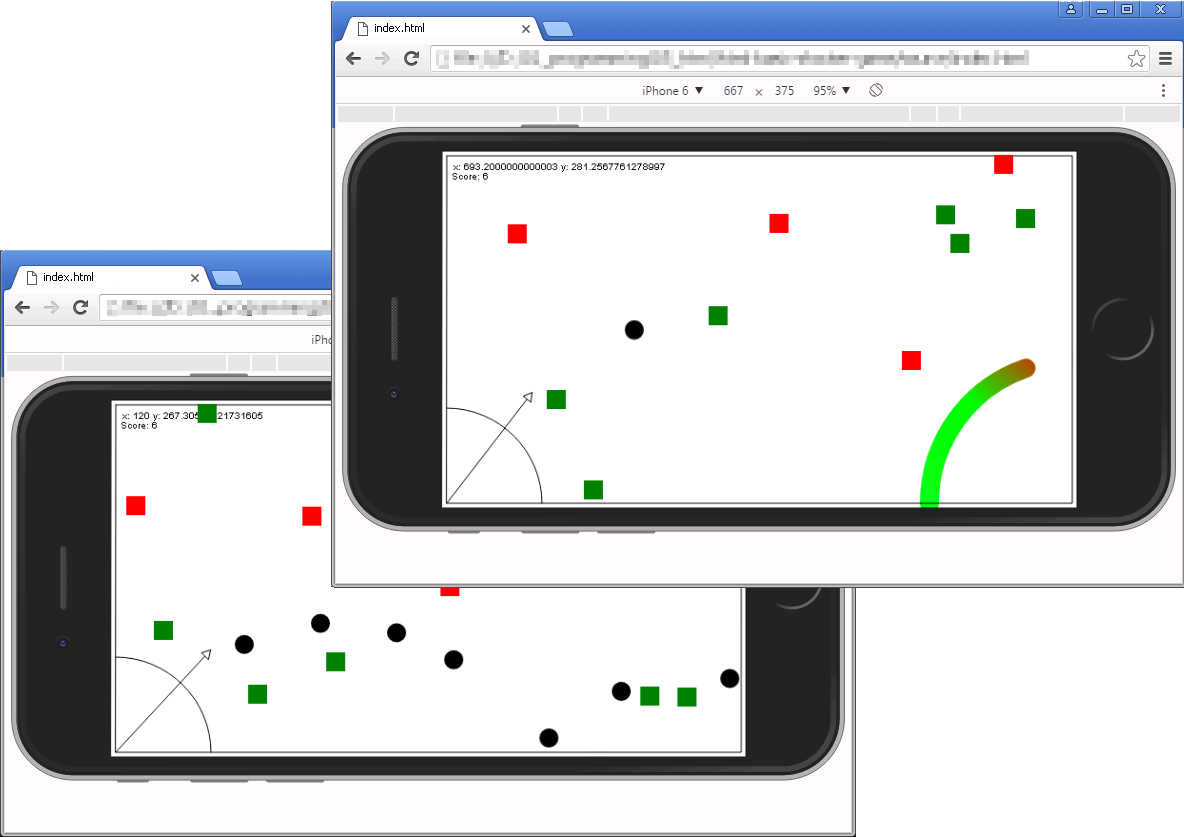
Build a Browser Game
HTML5 canvas game built from scratch with JavaScript.
What you’ll build
A real browser game — no engines, no frameworks, just HTML, CSS and your own code. You’ll learn how games work at the most fundamental level: draw a frame, update everything, draw the next frame, repeat.
Before you start: Think about the oldest video games you know — Pong, Snake, Pac-Man. They all do the same thing your game will do: update the game state 60 times per second and redraw the screen each time. That’s it.
🤔 Challenge: Open the developer tools on any browser (F12), go to the Console, and type
console.log(60 * 16). This is how long each frame takes at 60fps. Why is it not exactly 16? Because screens don’t refresh at exactly the same speed your code runs.
What you need
No physical hardware at all! Just:
- A code editor (VS Code recommended, free)
- A web browser (Chrome, Firefox, Edge)
- Curiosity and patience
💡 First time coding? Don’t worry. Every programmer started here. Type the code exactly as shown, and you’ll have a working game in 30 minutes.
Step 1: Set up your project
Create a folder called my-game. Inside, create 3 files:
  my-game/
  ├── index.html     ← loads everything
  ├── style.css      ← makes it look nice
  └── game.js        ← all the logic
index.html:
<!DOCTYPE html>
<html>
<head>
  <title>My Game</title>
  <link rel="stylesheet" href="style.css">
</head>
<body>
  <canvas id="game" width="800" height="400"></canvas>
  <script src="game.js"></script>
</body>
</html>
🤔 What is
<canvas>? It’s an HTML element that gives you a blank drawing area. Your JavaScript code draws shapes, text and images onto it — frame by frame.
style.css:
* { margin: 0; padding: 0; box-sizing: border-box; }
body {
  background: #0a0a14;
  display: flex;
  justify-content: center;
  align-items: center;
  height: 100vh;
  overflow: hidden;
}
canvas {
  border: 2px solid #3da9ff;
  border-radius: 4px;
}
🤔 What does each CSS line do?
margin: 0removes default spacing.display: flexcentres the canvas on screen.height: 100vhmakes the body fill the whole screen. Try changing#0a0a14to#1a1a1a— what changes?
Step 2: The canvas and game state
// game.js
const canvas = document.getElementById('game');
const ctx = canvas.getContext('2d');  // 2D drawing context

// This object holds EVERYTHING about your game
const state = {
  player: { x: 50, y: 300, width: 30, height: 40, vy: 0, jumping: false },
  obstacles: [],
  coins: [],
  score: 0,
  speed: 5,
  frame: 0,
  keys: {}
};

document.addEventListener('keydown', (e) => state.keys[e.code] = true);
document.addEventListener('keyup', (e) => state.keys[e.code] = false);
What each line does:
getContext('2d')— gives you drawing tools (lines, rectangles, circles)state.player— stores position (x, y), size (width, height), velocity (vy) and state (jumping)state.keys— which keys are currently pressedaddEventListener('keydown')— runs when you press a key
🤔 Why store everything in one object? Because it’s easier to pass one variable to functions instead of 10 separate ones. It also makes saving/loading game state easy — just save the object!
💡 Try this: Change the canvas size in HTML from
800, 400to400, 300. The game will be smaller but the code stays the same. Try1200, 600— everything stretches.
Step 3: Player physics
function updatePlayer() {
  const p = state.player;

  // Gravity pulls you down
  p.vy += 0.5;

  // Movement: add velocity to position
  p.y += p.vy;

  // Ground collision — stop falling at the ground
  if (p.y + p.height > 360) {
    p.y = 360 - p.height;
    p.vy = 0;
    p.jumping = false;
  }

  // Jump only when on the ground
  if (state.keys['Space'] && !p.jumping) {
    p.vy = -12; // negative = up
    p.jumping = true;
  }
}

function drawPlayer() {
  const p = state.player;
  ctx.fillStyle = '#3da9ff'; // blue
  ctx.fillRect(p.x, p.y, p.width, p.height);

  // Eyes
  ctx.fillStyle = '#0a0a14'; // dark
  ctx.fillRect(p.x + 8, p.y + 8, 6, 6);
  ctx.fillRect(p.x + 18, p.y + 8, 6, 6);
}
What each line does:
p.vy += 0.5— gravity adds downward velocity each frame (50% faster each second)p.y += p.vy— position changes by velocity each framep.vy = -12— jumping gives upward velocity (negative = up in computer graphics)ctx.fillRect(x, y, w, h)— draws a filled rectangle at position (x,y) with width w and height h
🤔 Why is gravity 0.5? It’s a game feel number, not real physics. Try 0.3 — the player falls slower and floats more. Try 1.0 — it falls like a rock. Game feel is all about tweaking numbers.
💡 Try this: Change gravity to 0.3 and jump velocity to -15. Does the player jump higher and fall slower? Now try gravity 1.0 — the player drops like a stone.
Step 4: Obstacles and collision
function spawnObstacle() {
  // 2% chance per frame = about one obstacle every 2 seconds at 60fps
  if (Math.random() < 0.02) {
    state.obstacles.push({ x: 800, y: 360 - 30, width: 25, height: 30 });
  }
}

function checkCollisions() {
  const p = state.player;
  for (const obs of state.obstacles) {
    // Check if two rectangles overlap
    if (p.x < obs.x + obs.width &&
        p.x + p.width > obs.x &&
        p.y < obs.y + obs.height &&
        p.y + p.height > obs.y) {
      return true;
    }
  }
  return false;
}
🤔 How does rectangle collision work? Two rectangles overlap if: the left edge of one is left of the right edge of the other, AND the right edge of one is right of the left edge of the other. Both horizontal AND vertical overlap must be true — that’s why there are 4 checks.
Step 5: The game loop
function gameLoop() {
  // 1. Clear the screen
  ctx.clearRect(0, 0, 800, 400);

  // 2. Draw background
  ctx.fillStyle = '#0a1628';
  ctx.fillRect(0, 0, 800, 400);

  // 3. Draw ground
  ctx.fillStyle = '#ff2b2b';
  ctx.fillRect(0, 360, 800, 40);

  // 4. Spawn
  spawnObstacles();
  spawnCoins();

  // 5. Update everything
  updatePlayer();
  updateObstacles();
  updateCoins();

  // 6. Draw everything (order matters!)
  drawObstacles();
  drawCoins();
  drawPlayer();

  // 7. Show score
  ctx.fillStyle = '#3da9ff';
  ctx.font = '20px monospace';
  ctx.fillText(`Score: ${state.score}`, 10, 30);

  // 8. Check collisions
  if (checkCollisions()) {
    gameOver();
  } else {
    checkCoinCollision();
    state.frame++;
    if (state.frame % 300 === 0) state.speed += 0.2;
  }

  // 9. Repeat (this is what makes it a game)
  requestAnimationFrame(gameLoop);
}

gameLoop();
🤔 Why
requestAnimationFrame(gameLoop)? It tells the browser “call me again when you’re ready to draw the next frame”. The browser tries to do this 60 times per second. It’s smoother thansetIntervalbecause the browser can adjust timing.
💡 You did it! If you see a blue square on a screen with a red ground, and you can press Space to jump — you have a working game! Everything else is just adding features.
Step 6: Add it online
# Install Wrangler (Cloudflare CLI)
npm install -g wrangler

# Log in to Cloudflare
wrangler login

# Deploy!
wrangler pages deploy ./my-game
Your game is now live at a URL like https://my-game-abc123.pages.dev. Share it with anyone — they can play it in their browser, no downloads needed.
What’s next?
Build a Personal Dashboard — another software project that displays your data.
$ ./shop-this-guide
Built, tested and ready to go on this site.
 In stock
AxiomStrat
Build, backtest and deploy MT5 strategies
 Made to order
Custom Automation Builds
Scripts, workflows and extensions that save real hours
 Made to order
Custom Enclosures & Cases
Grips, shells and cases — designed and printed to order