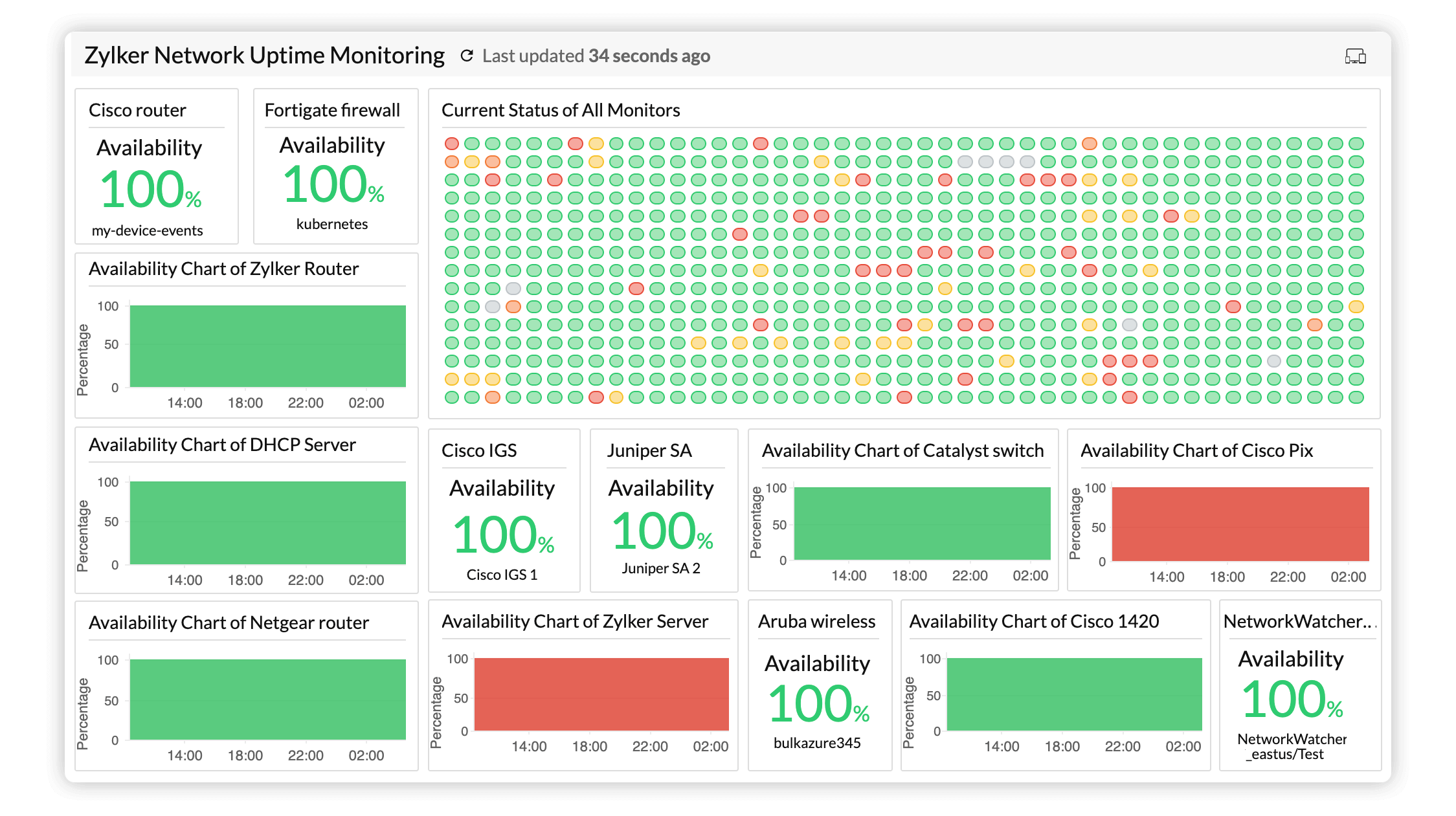
Build a Network Monitor
Desk device showing internet health with LEDs and OLED.
What you’ll build
A small device that sits on your desk and tells you at a glance whether your internet is working, how fast it is, and which sites are down. Three LEDs: green for good, amber for slow, red for down.
Before you start: Think about the last time your internet went down. How did you find out? Probably by noticing something didn’t work. Your monitor will tell you instantly — before you even open a browser.
🤔 Design challenge: What colour would YOU use for “slow but working”? Green means fast, red means down. What about somewhere in between? Pick a colour and explain why in 2 sentences.
What you need
| Part | What it does |
|---|---|
| ESP32 dev board | The brain |
| 3x LEDs (green, amber, red) | Status indicators |
| 0.96” OLED display | Shows latency numbers |
| Breadboard + wires | Connections |
| 3x 220Ω resistors | Limit LED current |
| USB-C cable | Power |
💡 The resistor matters: LEDs without resistors draw too much current and burn out quickly. Use 220Ω resistors for each LED. If you can’t find them, any resistor between 100Ω and 470Ω works.
Step 1: Understand the concept
Your ESP32 will:
- Connect to WiFi
- Ping 3 websites every 30 seconds
- Show results on LEDs and OLED
  ┌──────────────┐
  │  ESP32        │
  │  - Connects to WiFi      │
  │  - Pings 3 servers       │
  │  - Updates LEDs          │
  │  - Updates OLED display  │
  └──────────────┘
🤔 What does “ping” mean? It’s when your computer sends a tiny message to a server and waits for a reply. The time it takes to get the reply is the “latency” or “ping time”. Lower = faster.
Step 2: Wire the LEDs
Each LED needs a resistor. The ESP32 detects button presses when they connect to GND:
  Green LED     Amber LED      Red LED
    ┌             ┌             ┌
    │             │             │
  [LED]        [LED]         [LED]
  ─┤─           ─┤─           ─┤─
    │             │             │
   GPIO2        GPIO3        GPIO4
    │             │             │
   [220Ω]       [220Ω]       [220Ω]
    │             │             │
  ──┴── GND     ──┴── GND     ──┴── GND
⚠️ Important: The ESP32 uses active-low for LEDs. This means
digitalWrite(pin, LOW)turns the LED ON, anddigitalWrite(pin, HIGH)turns it OFF. It’s confusing at first but it saves current.
🤔 Can you wire these without a breadboard? Yes — twist the wires together and use heat shrink or tape. But a breadboard makes it easier to change later.
Step 3: Wire the OLED
Same I2C connections as every other project:
  ESP32 → OLED
  3.3V → VCC
  GND  → GND
  GPIO 21 → SDA
  GPIO 22 → SCL
Step 4: The main code
#include <WiFi.h>

const char* ssid = "YOUR_WIFI";
const char* password = "YOUR_PASSWORD";

#define GOOD_PIN 2
#define SLOW_PIN 3
#define DOWN_PIN 4

const char* hosts[] = {"8.8.8.8", "1.1.1.1", "192.168.1.1"};
const int NUM_HOSTS = 3;

void setup() {
  Serial.begin(115200);
  pinMode(GOOD_PIN, INPUT_PULLUP);
  pinMode(SLOW_PIN, INPUT_PULLUP);
  pinMode(DOWN_PIN, INPUT_PULLUP);

  WiFi.begin(ssid, password);
  while (WiFi.status() != WL_CONNECTED) {
    delay(500);
  }
  Serial.println("Connected! IP: " + WiFi.localIP().toString());
}

void pingAll() {
  for (int i = 0; i < NUM_HOSTS; i++) {
    int latency = WiFi.ping((uint8_t*)hosts[i], 2000);
    Serial.print(hosts[i]);
    if (latency < 0) {
      Serial.println(" DOWN");
    } else if (latency > 200) {
      Serial.println(" SLOW: " + String(latency) + "ms");
    } else {
      Serial.println(" OK: " + String(latency) + "ms");
    }
  }
}

void updateLEDs(bool anyDown, bool anySlow) {
  // Active-low: LOW = ON
  digitalWrite(GOOD_PIN, (anyDown || anySlow) ? HIGH : LOW);
  digitalWrite(SLOW_PIN, anySlow ? LOW : HIGH);
  digitalWrite(DOWN_PIN, anyDown ? LOW : HIGH);
}

void loop() {
  pingAll();

  // Check again
  bool anyDown = false;
  bool anySlow = false;

  for (int i = 0; i < NUM_HOSTS; i++) {
    int latency = WiFi.ping((uint8_t*)hosts[i], 2000);
    if (latency < 0) anyDown = true;
    else if (latency > 200) anySlow = true;
  }

  updateLEDs(anyDown, anySlow);
  delay(30000); // wait 30 seconds
}
What each part does:
WiFi.ping()— sends a ping and returns the round-trip time in milliseconds, or -1 if it failedINPUT_PULLUP— the pin reads HIGH normally, LOW when button (or in this case, when we set it LOW intentionally for active-low LEDs)delay(30000)— 30 seconds in milliseconds
🤔 What happens when you ping your router (192.168.1.1)? It should be very fast (<10ms). If it’s down, your WiFi itself is having problems!
💡 Try this: Unplug your router’s internet cable (but leave WiFi on). Ping your router — it’s still there. Ping Google — it fails. The red LED should light up for Google, green for your router. This is exactly what network monitors do in real data centres!
Step 5: Add the display
void displayStatus(int* latencies, bool* statuses) {
  display.clearDisplay();
  display.setCursor(0, 0);
  display.println("Network Status");

  for (int i = 0; i < NUM_HOSTS; i++) {
    display.setCursor(0, 12 + i * 16);
    display.print(hosts[i]);
    display.print(" ");

    if (!statuses[i]) {
      display.println("DOWN");
    } else if (latencies[i] > 200) {
      display.print("SLOW ");
      display.println(latencies[i]);
    } else {
      display.print("OK ");
      display.println(latencies[i]);
    }
  }
  display.display();
}
Step 6: Assemble it
- Mount LEDs at the top of the case (with coloured covers)
- Mount OLED below the LEDs
- Place ESP32 inside
- Route USB-C out the back
Troubleshooting
LEDs always on?
- Check that you’re using
INPUT_PULLUPmode - Check your wiring matches the diagram — LEDs connect to GND through the pin
WiFi won’t connect?
- Double-check your SSID and password
- Make sure your ESP32 supports the WiFi band (2.4GHz only)
ping() doesn’t work?
- The ESP32 core must be 2.0.0+. Check your Arduino IDE board version
- Some boards need
#include <WiFi.h>and#include <WiFiUdp.h>
What’s next?
Build the Browser Game — a pure software coding project, no hardware needed.
$ ./shop-this-guide
Built, tested and ready to go on this site.
$ ./read-next
Pokéball Signal Tower: LED Patterns & WiFi Alerts
Build a Pokéball-shaped LED ring that displays patterns, responds to WiFi notifications, and looks incredible on your desk.
beginnerBuild a Digital Pet
Tamagotchi-style virtual pet with OLED, buttons and buzzer.
beginnerBuild a Plant Monitor
Soil moisture sensor, OLED display and watering alerts.