Build a Digital Pet
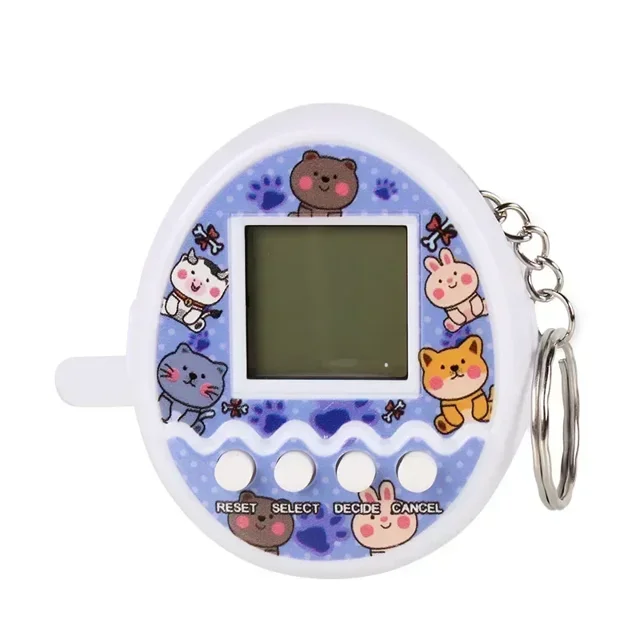
Tamagotchi-style virtual pet with OLED, buttons and buzzer.
What you’ll build
A pocket-sized friend that lives on a tiny screen. Feed it, play with it, let it sleep — it has moods, hunger, energy and a personality. The code is entirely yours to change.
Before you start: Have you ever had a pet that got sad when you ignored it? Your digital pet works the same way. If you don’t feed it, it gets hungry. If you don’t play, it gets bored. But unlike a real pet, you can’t break it!
What you need
| Part | What it does |
|---|---|
| ESP32 dev board | The brain |
| 0.96” OLED display | Shows your pet’s face |
| 3x tactile buttons | Select, play, sleep |
| Piezo buzzer | Makes sounds |
| Breadboard | Wiring base |
| Jumper wires | Connections |
| USB-C cable | Power |
💡 Looking for the parts? Search for “ESP32”, “0.96 OLED I2C”, “tactile button 6x6mm”, “piezo buzzer” on any electronics shop. You want the buzzer that makes a tone when voltage is applied (not the one that just beeps).
Step 1: The idea — how your pet works
Your pet has 3 stats: hunger, happiness and energy. Every second, these stats change:
- Hunger goes down (you need to feed it)
- Happiness goes down (you need to play with it)
- Energy goes down (you need to let it rest)
The pet’s “face” on screen changes based on these stats:
- All stats high → happy face 😊
- Some stats low → sad face 😢
- Energy at 0 → sleeping face 😴
🤔 Design challenge: Draw what you think your pet’s face should look like. Happy, sad, sleeping — what should each look like? Sketch it before you start coding.
Step 2: Wire the buttons
Each button connects a pin to GND when pressed. The ESP32 detects this:
  Button 1 (Select)     Button 2 (Play)     Button 3 (Sleep)
      │                      │                      │
      └──── GPIO 4             └──── GPIO 5            └──── GPIO 6
      │                      │                      │
  ─────┴──── GND           ─────┴──── GND           ─────┴──── GND
🤔 Why does pressing a button connect it to GND? Think of it like a light switch. When the switch is off (button not pressed), the pin reads HIGH (power). When you flip it (press the button), it connects to ground and reads LOW. The ESP32 uses this change to know you pressed something.
Step 3: Wire the rest
  ESP32 → OLED (same as every other I2C project):
    3.3V → VCC
    GND  → GND
    GPIO 21 → SDA
    GPIO 22 → SCL

  ESP32 → Buzzer:
    GPIO 7 → + pin
    GND → - pin
💡 Wire colour reminder: Red = power, Black = ground, Yellow = data, Green = clock (SCL). Use colours consistently — it makes debugging much easier later.
Step 4: The core pet logic
This is the foundation — your pet’s brain:
struct Pet {
  int hunger;        // starts at 50 (out of 100)
  int happiness;     // starts at 50
  int energy;        // starts at 80
  bool asleep;       // starts awake (false)
};

Pet myPet = {50, 50, 80, false};
🤔 Why start at 50 for hunger and happiness but 80 for energy? Because your pet just woke up! It’s fed, it’s happy, but it’s not fully rested yet. Energy builds up while sleeping.
Every second, these happen:
// When awake: hunger goes down slowly
//              happiness goes down more slowly
//              energy goes down very slowly
// When asleep: energy goes up (restoring)
💡 Try this: Change
hungerfrom0.05to0.5. What happens to your pet? Now make it0.005. Which speed feels right for a pet?
Step 5: Handle button presses
const int BUTTON_SELECT = 4; // cycle through stats
const int BUTTON_PLAY = 5;   // improve current stat
const int BUTTON_SLEEP = 6;  // sleep/wake
What each button does:
- Select — cycles between hunger, happiness and energy (the one you want to change)
- Play — improves the selected stat (feed for hunger, play for happiness, rest for energy)
- Sleep — puts your pet to sleep / wakes it up
🤔 Why three buttons and not more? Keep it simple! Two buttons is enough for a basic pet (one to choose, one to act). The third adds sleeping. If you wanted to make it more complex, you could add more buttons later.
Step 6: Display the pet
The fun part — drawing your pet’s face on screen:
void displayPet() {
  // Draw eyes based on mood
  // If happy: big round eyes
  // If sad: small eyes
  // If asleep: closed eyes (just lines)
}
🎨 Art challenge: Open a piece of paper and draw 3 different faces for your pet: happy, sad and sleeping. Keep them simple — just circles and lines. You’ll recreate them in code using
display.fillCircle()anddisplay.drawLine().
Step 7: Put it together
- Mount the OLED where you can see it
- Place buttons below the screen
- Put ESP32 and buzzer inside
- Route wires neatly
- Power via USB-C
Troubleshooting
Buttons don’t work?
- Check you’re using
INPUT_PULLUPin your pin setup - Make sure buttons connect the pin to GND (not to 3.3V)
Pet face looks wrong?
- Check your math —
display.fillCircle(x, y, radius, colour)takes radius as the third argument
No sound from buzzer?
- Make sure it’s connected to GPIO 7 (not a PWM-only pin)
- Try swapping the + and - connections
What’s next?
Build the Smart Plant Monitor — another sensor project, this time for your plants.
$ ./shop-this-guide
Built, tested and ready to go on this site.