Build a Weather Station
Desktop weather station with ESP32, BME280 sensor and OLED display.
What you’ll build
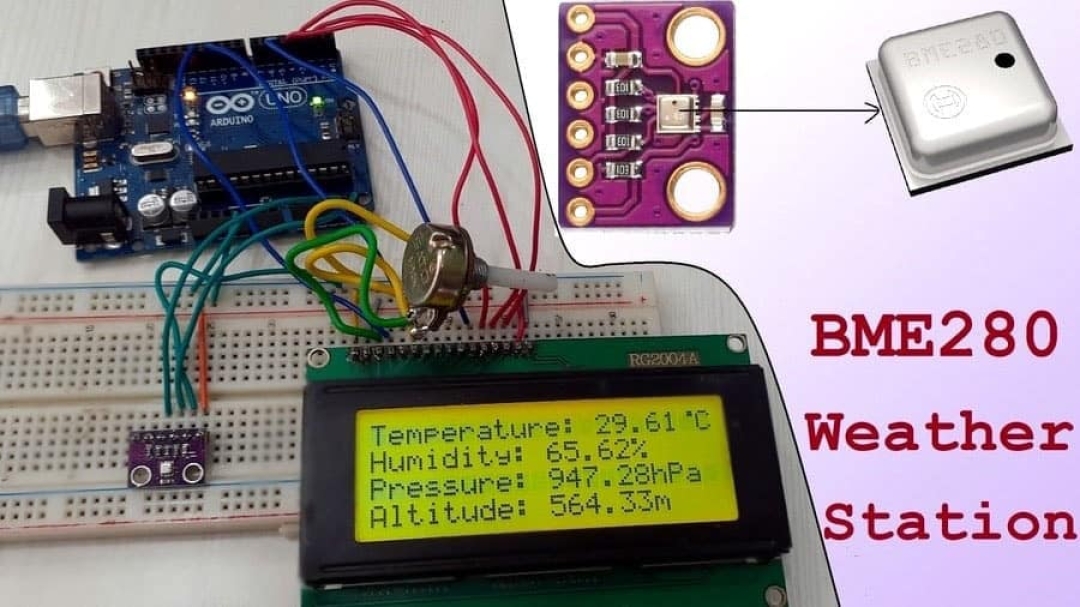
A small box that sits on your desk and shows you the temperature, humidity and air pressure in real time. You’ll learn how sensors work, how to wire them up, and how to write code that reads data.
Before you start: Can you guess which sensor measures humidity? The BME280 measures all three — temperature, humidity and pressure. It’s the same chip inside many smart home devices.
What you need
Buy these parts individually — none of this comes in a kit:
| Part | What it does | Photo |
|---|---|---|
| ESP32 dev board | The brain — runs your code |  |
| BME280 sensor | Reads temp, humidity, pressure |  |
| 0.96” OLED display | Shows the readings |  |
| Breadboard | Lets you wire without soldering |  |
| Jumper wires | Connect everything | |
| USB-C cable | Power and programming |
💡 Not sure what to buy? Search for “ESP32 dev kit” on any electronics shop — you want the one with 38 pins. For the BME280, search “BME280 module” — it has 4 pins already soldered on.
Step 1: Find the pins
Before wiring, let’s understand what you’re looking at.
On the ESP32 board:
- Look for a pin labelled 3.3V — this is power
- Look for GND — this is ground (the return path)
- Find GPIO 21 and GPIO 22 — these carry data
- Find A0 — this reads analog signals
🤔 Can you find them? Take 30 seconds to locate all five pins on your board. Check with a friend — did you find the same ones?
On the BME280 sensor: You’ll see 4 pins: VCC, GND, SDA, SCL.
On the OLED display: You’ll see 4 pins: VCC, GND, SDA, SCL.
💡 Why two SDA and two SCL? Both the sensor and the display use the same “I2C” communication protocol. They share the two data wires — that’s fewer wires you need to connect!
Step 2: Wire it up
Here’s the wiring. Follow it exactly:
  ESP32           Breadboard           BME280           OLED
  ──────           ──────────           ──────           ────
  3.3V  ──────→   + rail     ──────→  VCC            VCC
  GND   ──────→   - rail     ──────→  GND            GND
  GPIO21 ──────→               ──────→  SDA            SDA
  GPIO22 ──────→               ──────→  SCL            SCL
🤔 Why does GPIO 21 and 22 go to both the sensor AND the display? They’re on the same I2C bus — like two people listening to the same radio. Each device has a different address, so the ESP32 knows which is which.
Colour code your wires
Use wire colours consistently — it makes troubleshooting much easier:
| Colour | Purpose | Where it goes |
|---|---|---|
| Red | Power (3.3V) | ESP32 → 3.3V rail → VCC on both devices |
| Black | Ground (GND) | ESP32 → GND rail → GND on both devices |
| Yellow | Data (SDA) | ESP32 GPIO 21 → SDA on both devices |
| Green | Data (SCL) | ESP32 GPIO 22 → SCL on both devices |
✅ Test it now: Before writing any code, plug in the USB cable. Does the ESP32 power up? If you have an LED on the board, it should light up. If nothing happens, double-check your power connections.
Step 3: Install the libraries
Libraries are pre-written code that handles the hard parts for you.
- Open Arduino IDE
- Go to Sketch → Include Library → Manage Libraries
- Search for and install each one:
| Library name | What it does |
|---|---|
| Adafruit SSD1306 | Controls the OLED display |
| Adafruit GFX Library | Graphics helpers for the display |
| Adafruit BME280 | Reads the BME280 sensor |
🤔 What is a library? Think of it like a cookbook — instead of writing every recipe from scratch, you flip to the page that already has it done.
Step 4: Upload the code
Copy this into Arduino IDE:
#include <Wire.h>
#include <Adafruit_SSD1306.h>
#include <Adafruit_BME280.h>

Adafruit_SSD1306 display(128, 64, &Wire, -1);
Adafruit_BME280 bme;

void setup() {
  display.begin(SSD1306_SWITCHCAPVCC, 0x3C);
  if (!bme.begin(0x76)) {
    display.println("Sensor not found!");
    display.display();
    while (1) delay(100);
  }
}

void loop() {
  display.clearDisplay();
  display.setCursor(0, 0);
  display.print("Temp: ");
  display.print(bme.readTemperature(), 1);
  display.println(" C");
  display.setCursor(0, 12);
  display.print("Hum:  ");
  display.print(bme.readHumidity(), 1);
  display.println(" %");
  display.setCursor(0, 24);
  display.print("Pres: ");
  display.print(bme.readPressure() / 100.0, 1);
  display.println(" hPa");
  display.display();
  delay(15000);
}
What each part does:
#includelines — loads the libraries (like opening the cookbook)Adafruit_SSD1306 display(...)— creates a display object (like naming your screen “display”)bme.begin(0x76)— starts the sensor at address 76 (check yours — some are 0x77)display.print(...)— shows text on the screendelay(15000)— waits 15 seconds before updating (15000 milliseconds)
🤔 What do you think
0x3Cmeans? It’s the OLED’s address on the I2C bus — like a house number. If your display doesn’t work, try0x3D— some displays use that address instead.
Step 5: See it work!
- Click the Upload button (right arrow)
- Wait for it to compile and upload
- Look at your OLED — it should show temperature, humidity and pressure!
🎉 You did it! You’re reading real sensor data. Touch the BME280 — your body heat should change the temperature reading slightly.
💡 Try this: Change
delay(15000)todelay(5000)(5 seconds instead of 15). Does it update faster? What aboutdelay(60000)(1 minute)?
Step 6: Assemble it
Once it works on the breadboard, you can make it permanent:
- Put the ESP32 and BME280 inside a small box
- Mount the OLED where you can see it
- Use hot glue or tape to hold everything in place
- Keep the USB-C cable accessible for power
🤔 What could you put it in? A small plastic project box, a 3D-printed case, or even a decorative tin. What would look best on your desk?
Troubleshooting
Display is blank?
- Check that SDA goes to GPIO 21 and SCL goes to GPIO 22
- Check the I2C address — try
0x3Dinstead of0x3Cin the code
Sensor shows “not found”?
- Check that the BME280’s VCC goes to 3.3V (not 5V)
- Check wiring: VCC→3.3V, GND→GND, SDA→GPIO21, SCL→GPIO22
- The address might be
0x77instead of0x76
Readings show 0 or -1000?
- The sensor may not be connected properly
- Check all 4 wires on the BME280 individually
What’s next?
Build the LED Word Clock — same ESP32 and display, but shows the time in glowing letters.
$ ./shop-this-guide
Built, tested and ready to go on this site.