Setting Up Your SudoDeck
From unboxing to your first macro — flash, connect and configure the SudoDeck macro keyboard.
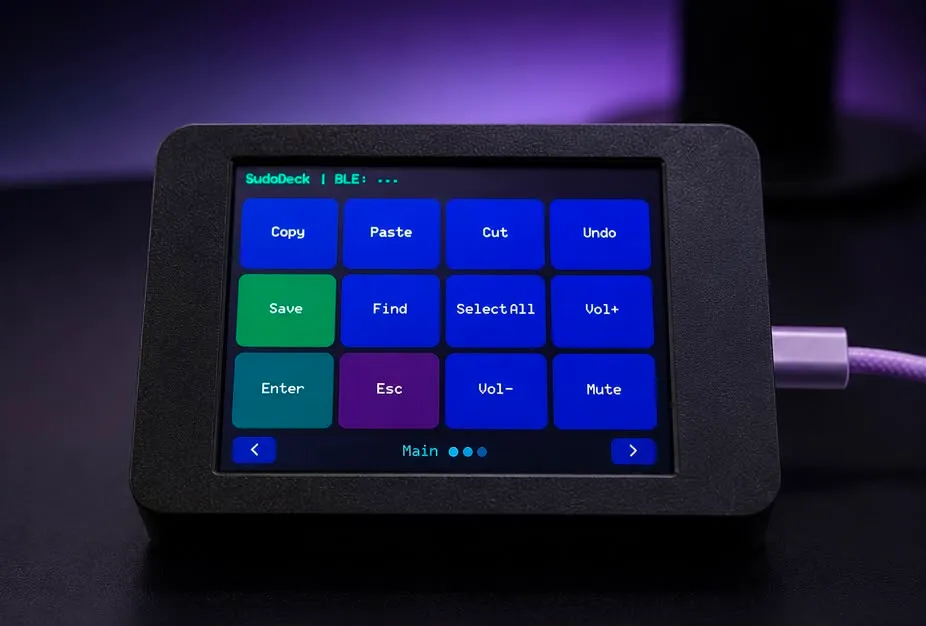
The SudoDeck is a wireless macro keyboard you configure from your browser. This guide takes you from a fresh device to a working button that types for you.
Buy it or build it
Buy pre-assembled — it arrives in a 3D-printed enclosure with a USB-C cable and the latest firmware already flashed. Skip straight to “Connect & configure”.
Build your own — you need three things:
- A CYD board (ESP32-2432S028R, or the pin-compatible E32R28T)
- A 3D-printed enclosure (print it from the open-source STL files, or buy one)
- A USB-C data cable (charge-only cables won’t work for flashing)
Assembly takes about ten minutes: slide the board into the enclosure, plug in USB, done.
Flash the firmware
Pre-assembled decks already have the firmware — skip this. For DIY builds, your board ships with factory demo software you need to replace:
- Plug the CYD into your computer via USB
- Hold the BOOT button (GPIO0, top-left edge)
- While holding BOOT, tap RESET (EN, top-right) — the screen goes blank
- Release BOOT — the board is now in download mode
- On the Configure page, click Connect for Flashing and pick your serial port
- Choose a firmware variant — Standard (BLE) for Bluetooth, or Wired (Serial) for USB
- Click Flash and wait for the progress bar to finish — the board reboots into SudoDeck
The flash only touches the app partition — the bootloader is protected, so a bad flash can’t brick it. Flash again if anything goes wrong.
Connect & configure
- Leave the deck plugged into USB (power + data)
- Open the Configure page in Chrome or Edge — Firefox and Safari don’t support Web Serial
- Click Connect and select the USB serial device
- Click Read to load the current layout
- Edit pages, place buttons, pick colours and assign actions
- Click Write to save it to the deck
Your layout is saved to the device itself — it persists across reboots and even
on another computer. Export a .json backup to be safe.
Your first button
Start simple: put a Text String action on one button and type your email address into it. Write the layout, tap the button, and watch it type. From there, build up to key combos and macros — that’s the whole fun of a macro deck.
$ ./shop-this-guide
Built, tested and ready to go on this site.