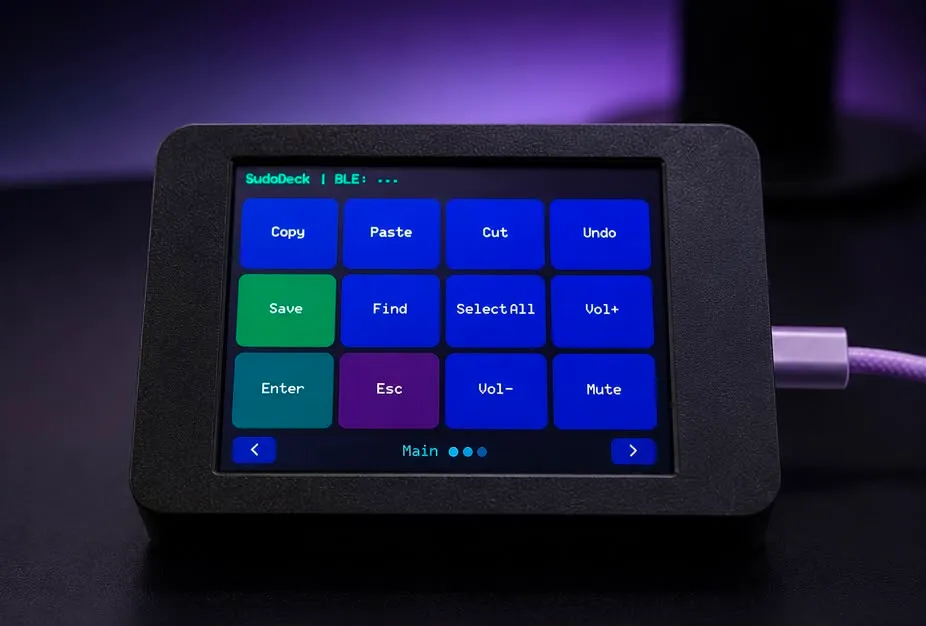
Cyberdeck Wireless Remote: Home Automation Guide
Build a relay controller and LED strip driver in a cyberpunk case. Control lights from your phone, build HTTP APIs, learn home automation.
What you need
From the Starter Pack: ESP32, breadboard, wires, USB-C cable.
From this kit: relay module, WS2812B LED strip (1m), 3D-printed cyberpunk case.
Step 1: Wire the relay
   Relay Module (1-channel)
   ┌─────────────────────────┐
   │  ┌─────────────────┐    │
   │  │  RELAY MODULE   │    │
   │  │  ┌─────┐        │    │
   │  │  │     │ ← click│    │
   │  │  └─────┘        │    │
   │  └─────────────────┘    │
   │  VCC GND IN             │
   └──┬───┬───┬──────────────┘
      │   │   │
      │   │   └──── GPIO 13
      │   └──────── GND
      └──────────── 5V

   Pin mapping:
   ┌────────────┬────────────┐
   │ Relay Pin  │ ESP32 Pin  │
   ├────────────┼────────────┤
   │ VCC        │ 5V         │
   │ GND        │ GND        │
   │ IN         │ GPIO 13    │
   └────────────┴────────────┘

   ⚠️  WARNING: The relay switches a SEPARATE circuit.
   Do NOT connect the device you want to control to the ESP32's power.
   The relay is the middleman between power and device.
Step 2: Wire the LED strip
   WS2812B LED Strip (1 metre, 30 pixels/m)
   ┌─────────────────────────────────────────┐
   │  ● ● ● ● ● ● ● ● ● ● ● ● ● ● ● ● ●  │
   │  ↑                                   ↑  │
   │  DIN                              end  │
   └──┬──────────────────────────────────┬───┘
      │                                  │
     VCC                                GND
      │                                  │
      │                                  │
   ┌──┼──────────────────────────────────┼──┐
   │  │                                  │  │
   │ 5V                                GND │  ← ESP32 pins
   │  │                                  │  │
   └──┼──────────────────────────────────┼──┘

   Pin mapping:
   ┌────────────┬────────────┐
   │ Strip Wire │ ESP32 Pin  │
   ├────────────┼────────────┤
   │ VCC (red)  │ 5V         │
   │ DIN (green)│ GPIO 12    │
   │ GND (white)│ GND       │
   └────────────┴────────────┘
Step 3: Install libraries
- Install FastLED (from the Signal Tower guide)
- Install WebServer (comes with ESP32 board support)
Step 4: Basic relay control
#define RELAY_PIN 13

void setup() {
  pinMode(RELAY_PIN, OUTPUT);
  digitalWrite(RELAY_PIN, LOW);  // relay off
}

void loop() {
  digitalWrite(RELAY_PIN, HIGH);  // relay on
  delay(2000);
  digitalWrite(RELAY_PIN, LOW);   // relay off
  delay(2000);
}
Result: The relay clicks on and off every 2 seconds. You can hear it switching.
Step 5: Build a web server
#include <WiFi.h>
#include <WebServer.h>

const char* ssid = "YOUR_WIFI_NAME";
const char* password = "YOUR_WIFI_PASSWORD";

WebServer server(80);

void handleRoot() {
  server.send(200, "text/html", R"rawliteral(
    <html>
    <body style="background:#0a0a14;color:#f0f4ff;font-family:monospace;text-align:center;padding:50px">
      <h1>CYBERDECK CONTROL</h1>
      <p><a href="/on" style="color:#22c55e;font-size:24px">[ ON ]</a></p>
      <p><a href="/off" style="color:#ff2b2b;font-size:24px">[ OFF ]</a></p>
    </body>
    </html>
  )rawliteral");
}

void handleOn() {
  digitalWrite(RELAY_PIN, HIGH);
  server.send(200, "text/html", "<h1 style='color:green'>ON</h1><a href='/'>Back</a>");
}

void handleOff() {
  digitalWrite(RELAY_PIN, LOW);
  server.send(200, "text/html", "<h1 style='color:red'>OFF</h1><a href='/'>Back</a>");
}

void setup() {
  WiFi.begin(ssid, password);
  while (WiFi.status() != WL_CONNECTED) delay(500);

  server.on("/", handleRoot);
  server.on("/on", handleOn);
  server.on("/off", handleOff);
  server.begin();
}

void loop() {
  server.handleClient();
}
Result: Open the Serial Monitor to see the IP address. Type it into your phone’s browser — you get a control panel. Tap ON/OFF to switch the relay.
   Phone Browser:
   ┌─────────────────────────┐
   │  CYBERDECK CONTROL      │
   │                         │
   │     [ ON ]              │
   │     [ OFF ]             │
   │                         │
   │  IP: 192.168.1.42       │
   └─────────────────────────┘
         ↓ WiFi
   ┌─────────────────────────┐
   │  ESP32 Web Server       │
   │         ↓               │
   │  GPIO 13 → Relay ON     │
   │         ↓               │
   │  Device turns ON        │
   └─────────────────────────┘
Step 6: Add LED strip control
Extend the web server with LED patterns:
#include <FastLED.h>

#define NUM_LEDS 30
#define DATA_PIN 12

CRGB leds[NUM_LEDS];

// Add to setup():
FastLED.addLeds<WS2812B, DATA_PIN, GRB>(leds, NUM_LEDS);

// New handlers:
void handleRainbow() {
  fill_rainbow(leds, NUM_LEDS, millis() / 10);
  FastLED.show();
  server.send(200, "text/html", "<h1>Rainbow</h1><a href='/'>Back</a>");
}

void handleOff() {
  digitalWrite(RELAY_PIN, LOW);
  fill_solid(leds, NUM_LEDS, CRGB::Black);
  FastLED.show();
  server.send(200, "text/html", "<h1>Off</h1><a href='/'>Back</a>");
}
Result: Your phone now controls both the relay and the LED strip.
Step 7: Assemble the cyberpunk case
   Cyberdeck Case Assembly:
   ┌─────────────────────────────────────────┐
   │  ╔═══════════════════════════════════╗  │
   │  ║  CYBERDECK                        ║  │
   │  ║  ┌──────────┐  ┌──────────┐      ║  │
   │  ║  │  ESP32   │  │  RELAY   │      ║  │
   │  ║  │          │  │  MODULE  │      ║  │
   │  ║  └──────────┘  └──────────┘      ║  │
   │  ║                                   ║  │
   │  ║  [ON] [OFF]  ● ● ●  WiFi         ║  │
   │  ╚═══════════════════════════════════╝  │
   │         │ LED strip out                 │
   │         ↓                               │
   │  ● ● ● ● ● ● ● ● ● ● ● ● ● ● ● ● ●  │
   │  (1m WS2812B strip, glowing)            │
└─────────────────────────────────────────┘- Fit the ESP32 and relay into the 3D-printed case
- Route the LED strip through the side slot
- Feed the USB-C cable through the back
- The neon accent lines glow from the LED strip inside
Customise it
- Add a colour picker to the web interface
- Set up MQTT for integration with Home Assistant
- Add a timer to turn lights on/off at specific times
- Create different “scenes” (movie mode, work mode, party mode)
What’s next?
Combine with the Pikachu Buzzer Badge to build a Smart Pikachu — voice-activated LED alerts with Pikachu sounds.
$ ./shop-this-guide
Built, tested and ready to go on this site.